Crew
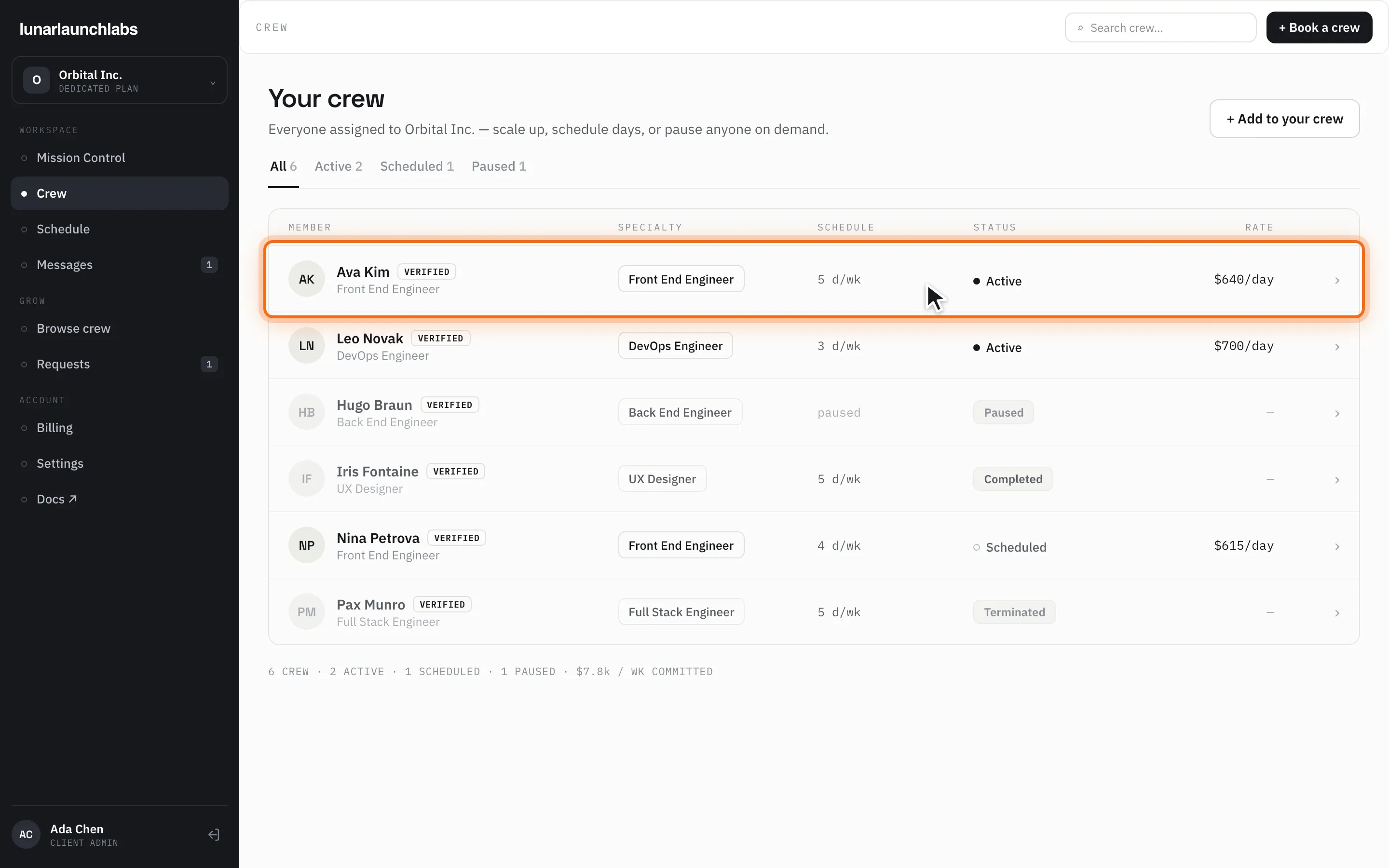
Crew (/crew) is your roster. The title is “Your crew”, subtitled “Everyone assigned to {your workspace} — scale up, schedule days, or pause anyone on demand.”, with an “+ Add to your crew” button (which takes you to Requests). The header search (“Search crew…”) filters the table.
The crew table
Section titled “The crew table”Filter tabs with live counts: All, Active, Scheduled, Paused.
Columns: MEMBER (avatar, name — with a VERIFIED tag for vetted crew — and role), SPECIALTY, SCHEDULE (“{n} d/wk”, or “paused”), STATUS, RATE (your all-in day rate, e.g. $840/day), and a chevron. Click a row (or press Enter on it) to open the member’s detail sheet.
Status pills: Active, Scheduled, Paused, Completed, Terminated. Paused and ended rows render muted with “—” in the rate column.
The footer totals your roster: “{N} CREW · {n} ACTIVE · {n} SCHEDULED · {n} PAUSED · {$X.Xk} / WK COMMITTED” — the committed figure is each active/scheduled member’s day rate × cadence, summed.
Empty states: “No crew yet” — “Your crew appears here once your first booking is confirmed.” (with a “Book your first crew” button); or, when a filter is empty, “Nobody here” — ‘No crew match “{filter}” right now.’ Load failure: “Could not load your crew. Please try again.” with Retry.
The crew member detail sheet
Section titled “The crew member detail sheet”Opening a row shows the member’s profile (eyebrow CREW MEMBER): avatar, name with the VERIFIED tag, role, the line “{specialty} · {location} · {experience}”, a status pill, and the engagement line “$840/day · 5 d/wk”. Below:
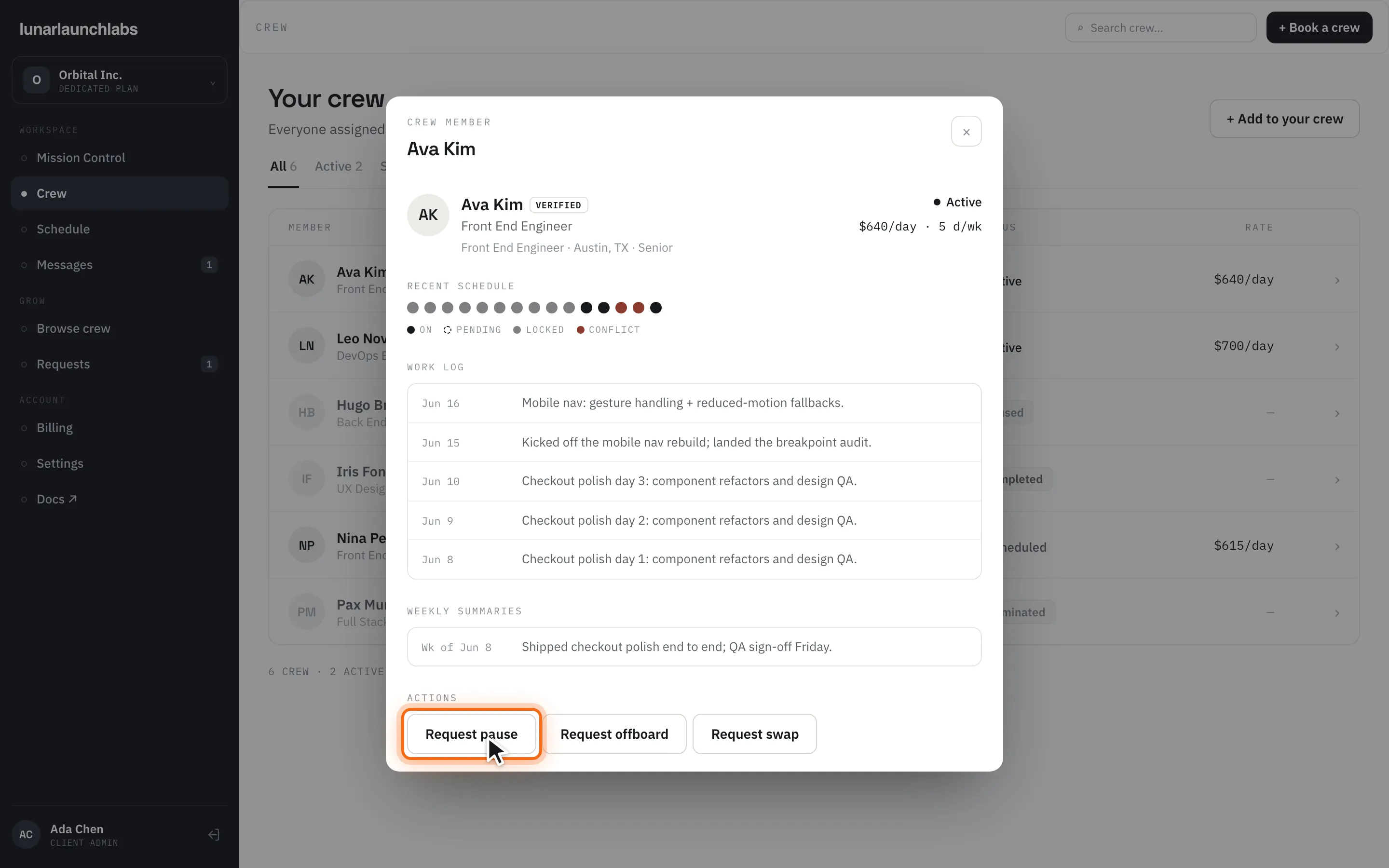
- RECENT SCHEDULE — a dot strip of their recent days, color-coded
ON,PENDING,LOCKED,CONFLICT; hover a dot for “{date} · {STATUS}”. Empty: “No scheduled days yet.” - WORK LOG — their daily entries, newest first: “No logs yet — entries appear as your crew logs their days.” until they write some.
- WEEKLY SUMMARIES — their weekly recaps (“Wk of {date}”). Empty: “No weekly summaries yet.”
If the member has meanwhile left your roster, the sheet shows “This crew member is no longer on your roster.” instead.
Pause, offboard, and swap
Section titled “Pause, offboard, and swap”The ACTIONS section of the detail sheet is where you change an engagement. Every action files a request with the crew desk — nothing changes until L3 confirms. After sending you’ll see “Sent to the crew desk — track it under Requests.”
Request pause
Section titled “Request pause”For an active or scheduled member:
- Click “Request pause”.
- The prompt reads: “Pause {name}? Their scheduled days stop while paused — the crew desk confirms the pause and adjusts your billing.”
- Optionally add a note (“Anything the crew desk should know (optional)…”) and click “Confirm pause”.
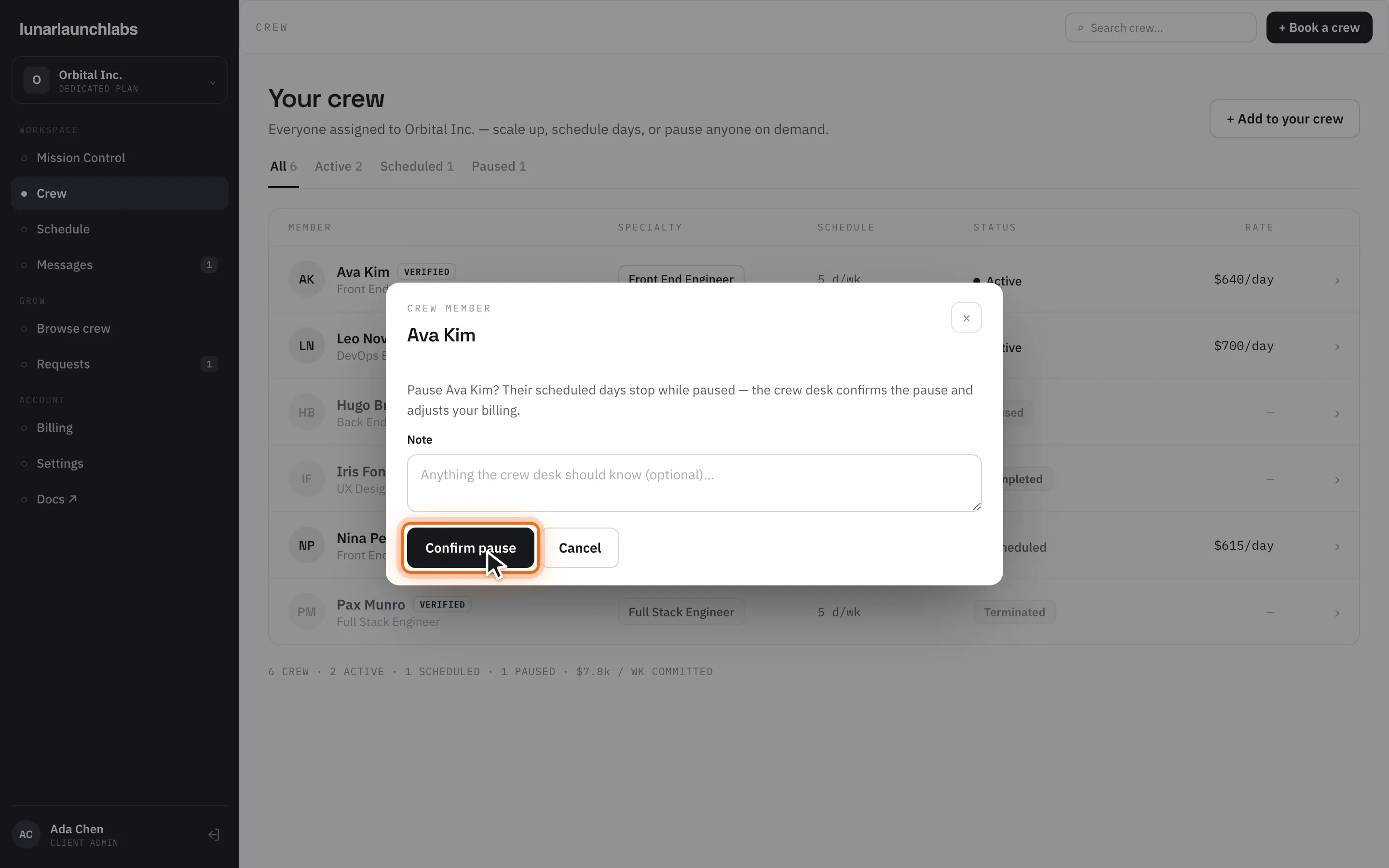
While paused, the member stays reserved for you and billing drops to the pause retainer — a percentage of the day rate set platform-wide (your Placement Order states the percentage that applies). Already-paused members show the note “Already paused — the crew desk will resume it per your request thread.” and the pause button is disabled; offboarding stays available.
Request offboard
Section titled “Request offboard”- Click “Request offboard”.
- The prompt reads: “Offboard {name}? The crew desk winds the placement down and confirms their last day with you.”
- Optionally note the last day (“e.g. End of the current sprint, Jul 17 (optional)…”) and click “Confirm offboard”.
Days already invoiced remain payable; future uninvoiced days are removed when the crew desk executes the offboard.
Request swap
Section titled “Request swap”- Click “Request swap”. The intro reads: “Swap {name} for a replacement role — the crew desk matches candidates and nothing changes until you approve them.”
- Pick the Replacement role from the catalog, a Booking period (1–4 weeks chips), and an optional note.
- Click “Submit swap request”.
The swap arrives as a normal proposal on Requests — you approve the replacement candidate before anything changes.
If a request fails to send, the sheet shows “Could not submit your request. Please try again.”.