Messaging basics
Every role has the same Messages page at /messages; who you can talk to differs per role — the Messages page of your role’s guide (in the sidebar) lists exactly who you can reach. This page covers the shared mechanics.
The layout
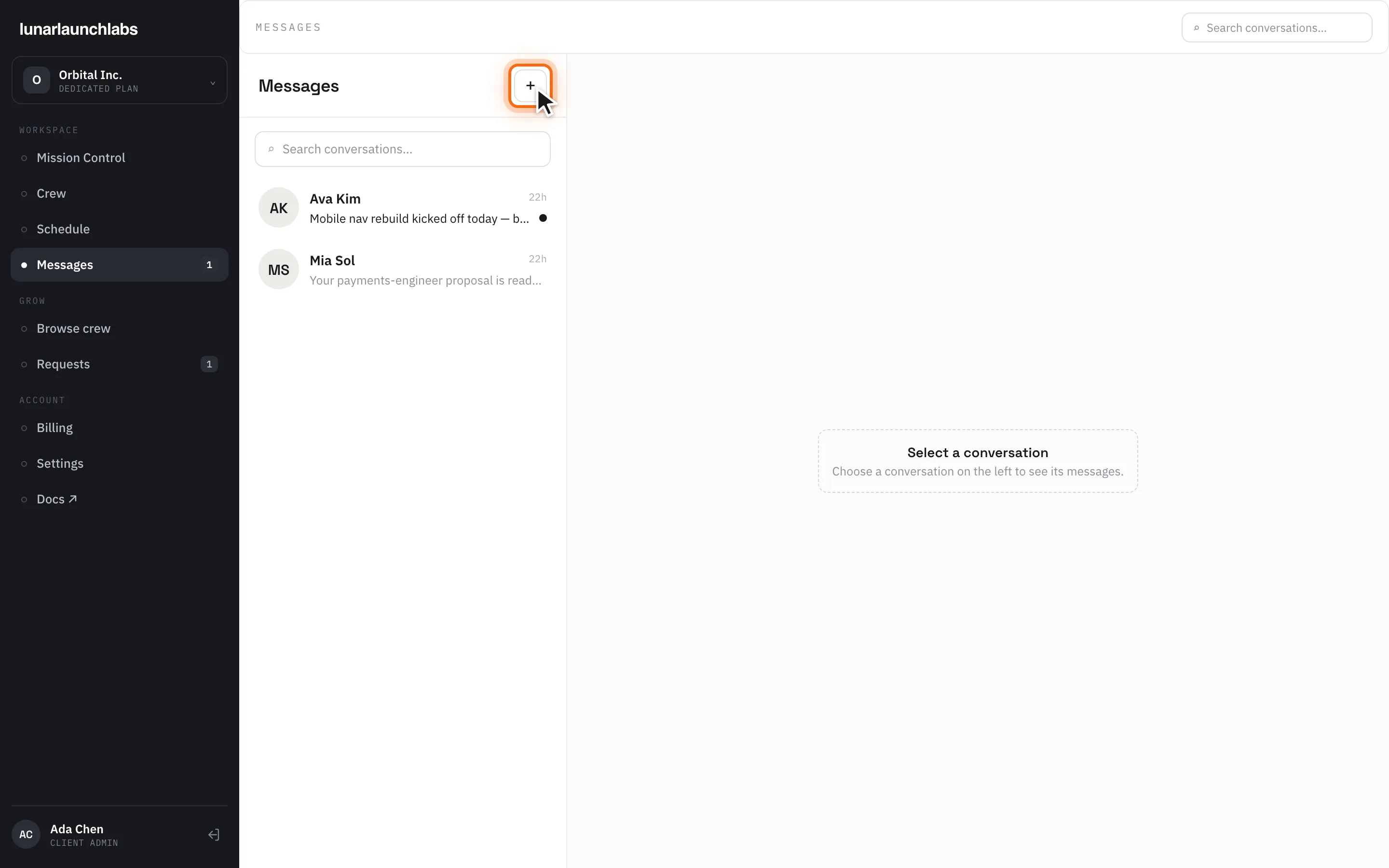
Section titled “The layout”Two panes — the conversation list on the left, the open thread on the right. On phones you see one pane at a time, with “← All conversations” to return to the list.
The conversation list
Section titled “The conversation list”- The header shows “Messages” and a “+” button (New conversation) that opens the compose picker — everyone you’re allowed to message, each with a short, whitelabel-safe context label (a job title, or “Lunar Launch Labs” for the crew desk).
- The search field (“Search conversations…” — also available in the page header) filters conversations by participant name.
- Each row: the other person’s initials and name, a relative timestamp (
now,5m,3h,2d, then a date), a preview of the last message (your own messages prefix “You: “; image-only messages show ”📷 Photo“), and an unread dot. - Empty state: “Start a conversation” — “Use the + button to message someone.”; empty picker: “No one to message yet.”
Starting a conversation with someone you already have one with simply reopens the existing thread — conversations are one-per-person.
The thread
Section titled “The thread”- Messages group into bursts by author — “You” for yours, the sender’s name for theirs — with the time (24-hour, e.g.
9:18) under each burst. - A live “{name} is typing…” indicator appears while the other side types.
- With no conversation selected: “Select a conversation” — “Choose a conversation on the left to see its messages.”
Sending
Section titled “Sending”Type in the composer (“Message {name}…”) and press Enter or click “Send”.
- Messages are plain text, up to 4,000 characters. There’s no markdown rendering — what you type is what they see.
- Image attachments: the “+” button in the composer opens a file picker (images only — PNG, JPEG, GIF, or WebP, up to 2 MB). A thumbnail chip appears; “×” removes it before sending. You can send an image with or without text; a completely empty message won’t send (“Say something or attach an image”).
- If a send fails, your draft is restored and the thread shows “Couldn’t send — try again”. A rejected image shows the reason (e.g. “Images must be 2 MB or smaller”) or “Couldn’t attach that image”.
Delivery, read state, and badges
Section titled “Delivery, read state, and badges”- Delivery is live: with the conversation open, new messages appear instantly (the app maintains a realtime connection per open conversation and quietly reconciles after any dropped connection — nothing is lost).
- Unread counts accumulate per conversation while you’re away and clear the moment you open the thread. Your sidebar’s Messages item badges the total across conversations (it refreshes when you open Messages) and is hidden entirely at zero.
- Messages are permanent — there’s no edit or delete.