Schedule
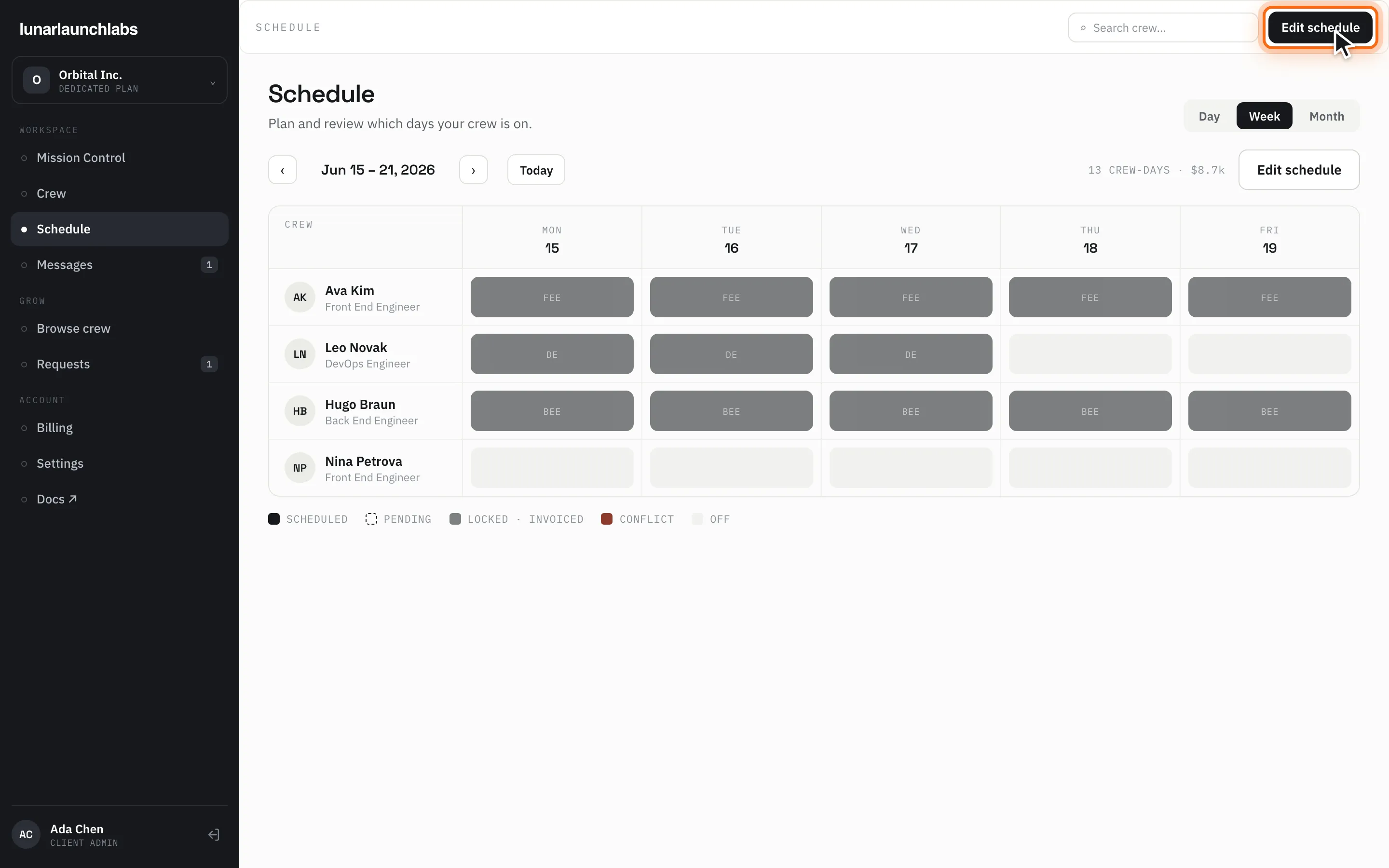
Schedule (/schedule) is your crew’s week grid — one row per placement, Monday–Friday. The title is “Schedule” (“Plan and review which days your crew is on.”). The header carries a search box (“Search crew…”) and the “Edit schedule” action; the page itself shows a Day/Week/Month segmented control (fixed to Week).
Reading the grid
Section titled “Reading the grid”- Navigate weeks with ‹ / › beside the week label (e.g. “Jun 22 – 28, 2026”); Today returns to the current week.
- The meta line totals the week: “{N} CREW-DAY(S) · $X.Xk” — every scheduled day at your day rates.
- Rows show the member (avatar, name, role); day cells show a short role code (e.g.
FE) when scheduled, “!” for conflicts, or nothing for off days.
The legend
Section titled “The legend”| Swatch | Meaning |
|---|---|
| SCHEDULED | A confirmed working day |
| PENDING | Planned but not confirmed |
| LOCKED · INVOICED | Already invoiced (advance billing) — immutable |
| CONFLICT | The day overlaps the crew member’s time off — the crew desk resolves it with you (reschedule or swap) |
| OFF | Not scheduled |
Empty state: “No crew scheduled” — “Once your crew is booked, their weekly schedule shows up here.” Load failure: “Could not load your schedule. Please try again.” with Retry.
Editing the schedule
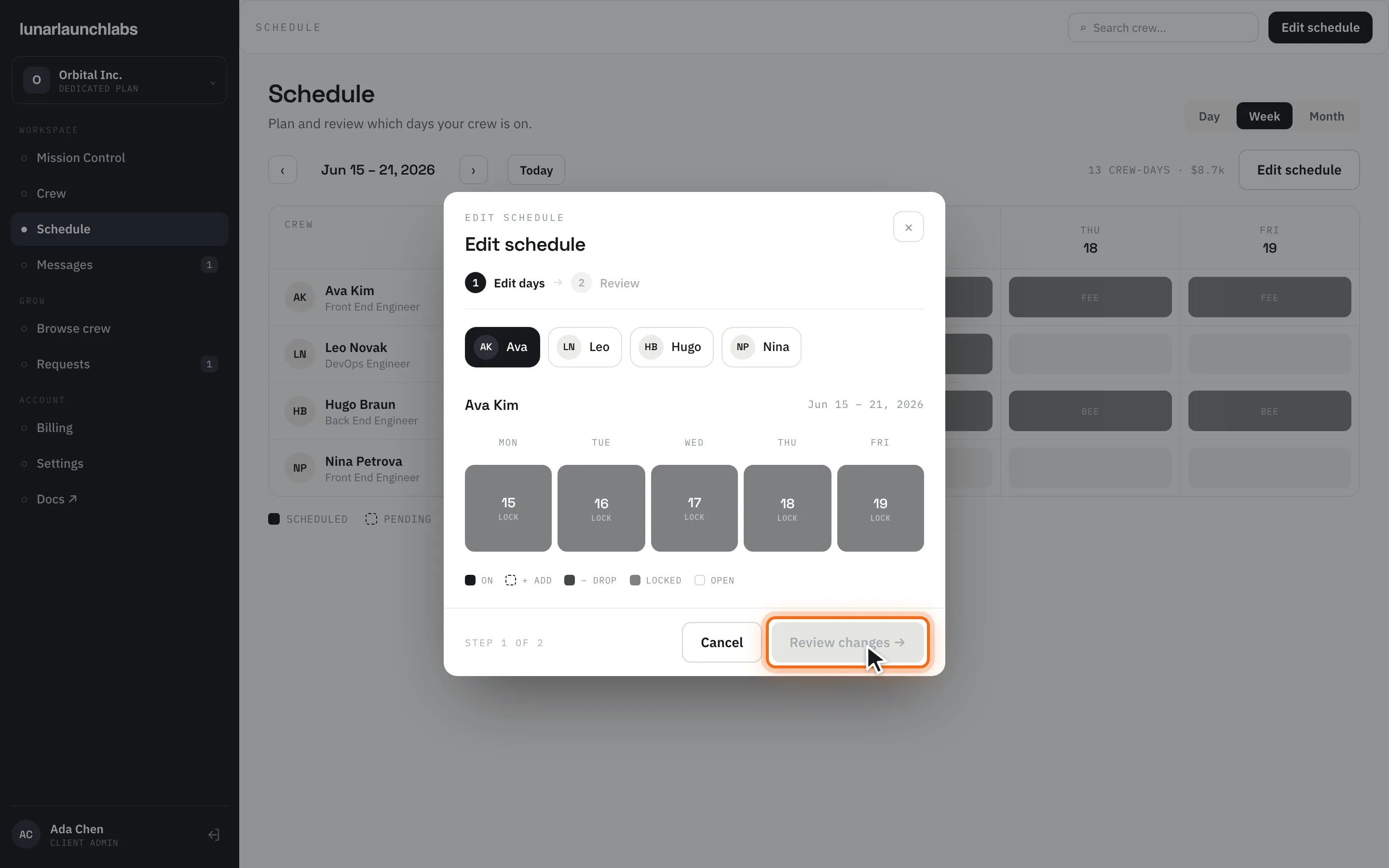
Section titled “Editing the schedule”Click “Edit schedule” (or arrive via the header action — /schedule?edit=1). The modal batches any number of changes across your crew into one confirmation, in two steps (step rail: Edit days → Review).
Step 1 — Edit days
Section titled “Step 1 — Edit days”- Pick a crew member from the chips at the top (each chip shows a badge counting your pending changes for that member).
- Click day cells to toggle changes: clicking an open day marks it + ADD; clicking a booked day marks it − DROP; clicking again clears the pending change.
- Days you can’t touch are disabled with a tooltip: “Already invoiced” (locked days) or “In the past”.
- The picker legend reads:
ON,+ ADD,− DROP,LOCKED,OPEN. - Click “Review changes →” (enabled once you’ve made at least one change).
Step 2 — Review
Section titled “Step 2 — Review”Each change lists the member, the day (“Add Wed Jul 8” / “Drop Wed Jul 8”), and its signed amount (“+$840” / “−$840”), with a COST DELTA total and the note: “added days (including this week’s) bill on your next invoice; dropped days are simply never billed.”
Click “Confirm changes” (“Applying…”). The success screen — “Schedule updated” — confirms “{n} changes applied” and repeats the cost-delta note, stamped “REFLECTED ON YOUR NEXT INVOICE”.
Rules the editor enforces
Section titled “Rules the editor enforces”The server double-checks every change; violations come back as inline errors:
- “{date} is already invoiced and locked” — locked days never change. (Weeks are invoiced each Friday for the following Monday–Friday.)
- “{date} is in the past and locked” — past days are history.
- “Weekends cannot be scheduled” — crew weeks run Monday–Friday.
- “This placement is paused — resume it first” — paused placements can’t be scheduled; arrange the resume through the crew desk.
How changes hit your invoice
Section titled “How changes hit your invoice”Nothing is refunded or re-invoiced mid-cycle. Instead:
- Adds to future, uninvoiced days are billed on your next weekly invoice.
- Drops of future, uninvoiced days remove them before they’re ever billed — nothing to credit, because invoiced days can’t be dropped at all.
- Changes to an already-invoiced week aren’t possible in the editor (those days are locked); if something must change there, contact the crew desk — corrections are issued as adjustments on the next invoice, never as refunds of a paid invoice.