Accounts & sign-in
How accounts are created
Section titled “How accounts are created”Exactly as the platform Terms of Service state: client accounts self-register (registration also creates the company workspace), and every other account is created by invitation — accepting the invitation is what creates the login. If you’ve been invited, jump to Accepting an invitation; your role’s own guide covers everything after sign-in.
Registering (clients)
Section titled “Registering (clients)”The registration page (“Start building your crew”, eyebrow CREATE YOUR ACCOUNT) asks for:
- Full name (stored as first + last, split at the last space) · Company · Work email · Phone (10–15 digits)
- Plan — Dedicated (“Committed weekly crew · best rates”) or Flex (“Book on demand · flexible rates”)
- Password — “At least 8 characters” (that’s the only rule; no complexity requirements)
- Two consent checkboxes (both required): “I have read and agree to the Terms of Service, and my clicks in this platform are binding electronic signatures.” and “I have read and agree to the Privacy Policy.”
Arrived through a referral link? The form shows a “REFERRED · CODE {code}” note above the fields, with a “(remove)” option. The code attributes your workspace to the person who referred you and never blocks registration — an unknown or inactive code is silently ignored.
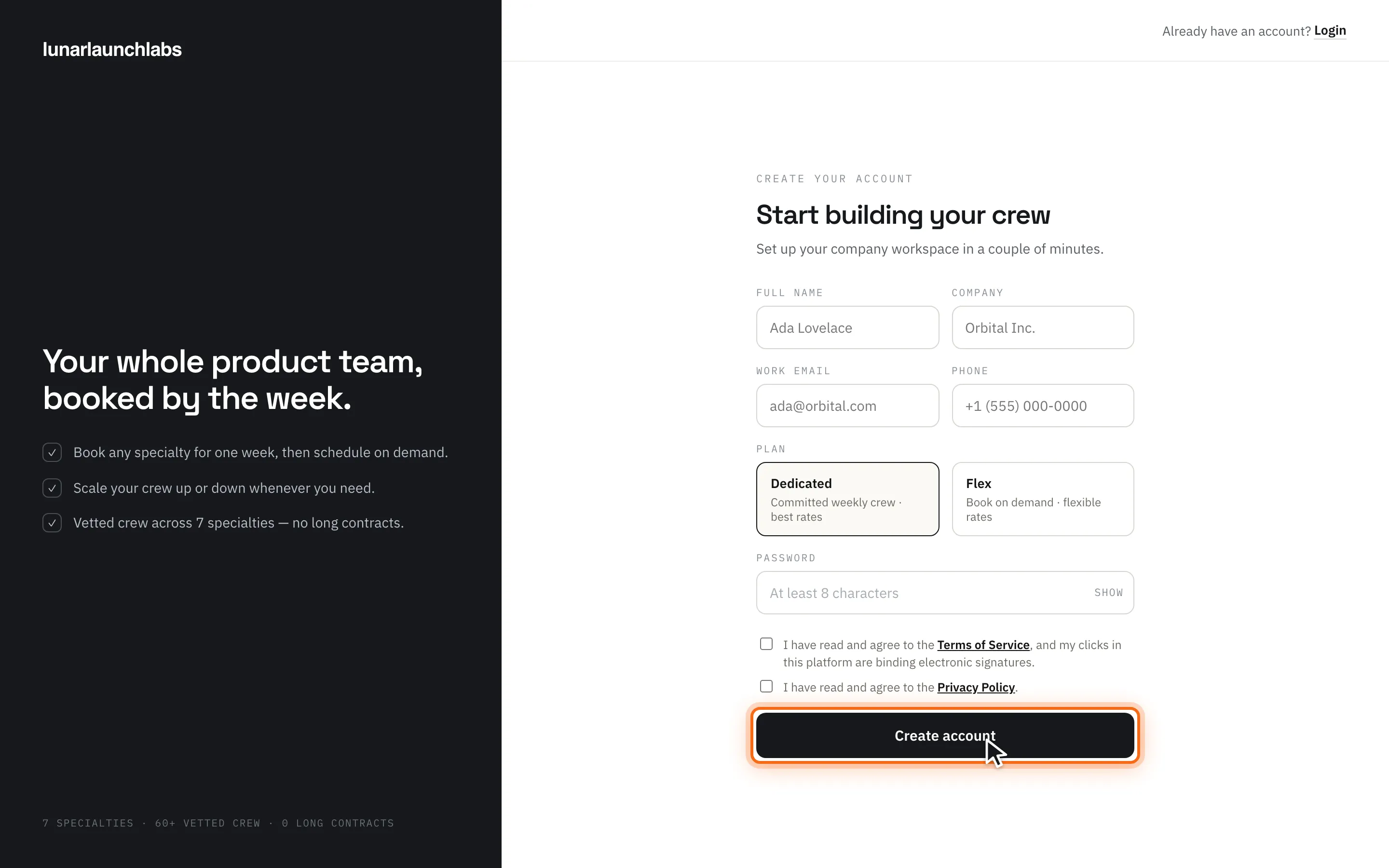
Click “Create account”. A duplicate email fails with “Email already in use”. Registering with a Lunar Launch Labs staff address is refused outright — “Lunar Launch Labs staff accounts are created by invitation. Ask an administrator to invite you.” On success you’re taken to the verification screen, and your workspace exists with you as its owner.
Verifying your email
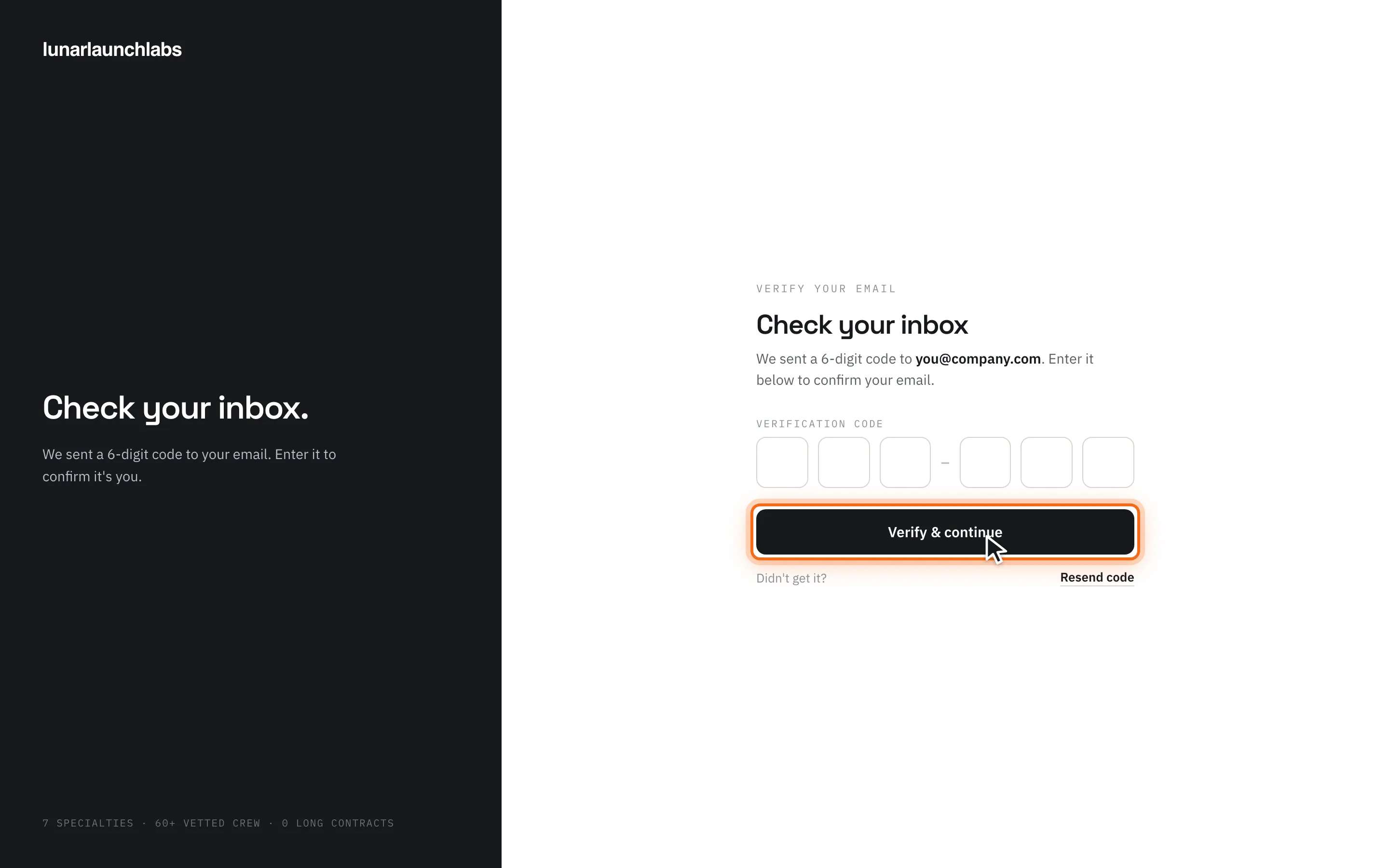
Section titled “Verifying your email”New self-registered accounts must be activated before signing in. The “Check your inbox” screen explains: “We sent a 6-digit code to {email}. Enter it below to confirm your email.”
- The email “Activate Your Account” carries a 6-digit code and an activation link (the link pre-fills the code).
- Codes expire after 30 minutes. Codes are single-use — an expired or reused code tells you exactly which: “Activation code has expired” / “Activation code has already been used” / “Invalid activation code”.
- “Resend code” issues a fresh code (the button waits 30 seconds between resends); resending invalidates earlier unused codes.
- On success (“Verify & continue” → “Account activated successfully”) you receive “Your Account Is Activated” and can sign in.
Accepting an invitation
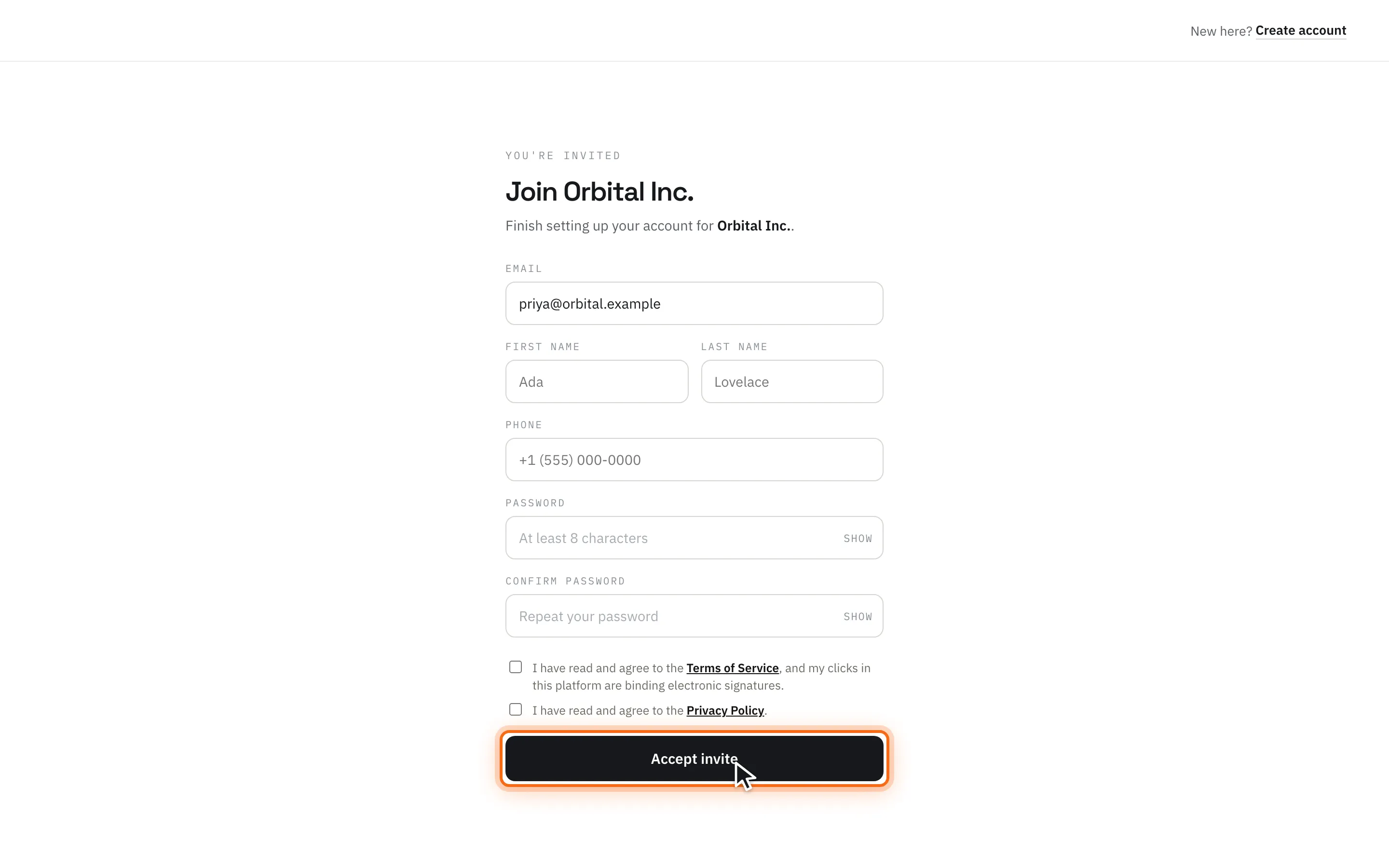
Section titled “Accepting an invitation”Invited users click Accept invite in “You’re invited to Lunar Launch Labs”, which opens “Join {workspace}”:
- Email is fixed (read-only, from the invite). Fill First name, Last name, Phone, Password (min 8) + Confirm password, and tick the same two legal checkboxes. Vendor workspace owners and L3 sales engineers tick one more — their role’s platform agreement: the Master Vendor Services Agreement or the Sales Engineer Commission & Conduct Agreement, which governs every future placement staffed under the account.
- Click “Accept invite”, then sign in — invited accounts are active immediately (no email-code step; the invite itself proves the address).
Invites expire after 7 days and are single-use. A used, revoked, or expired link shows “This invite is no longer valid” — “The link may have expired or already been used. Ask whoever invited you to send a fresh one.”
Signing in
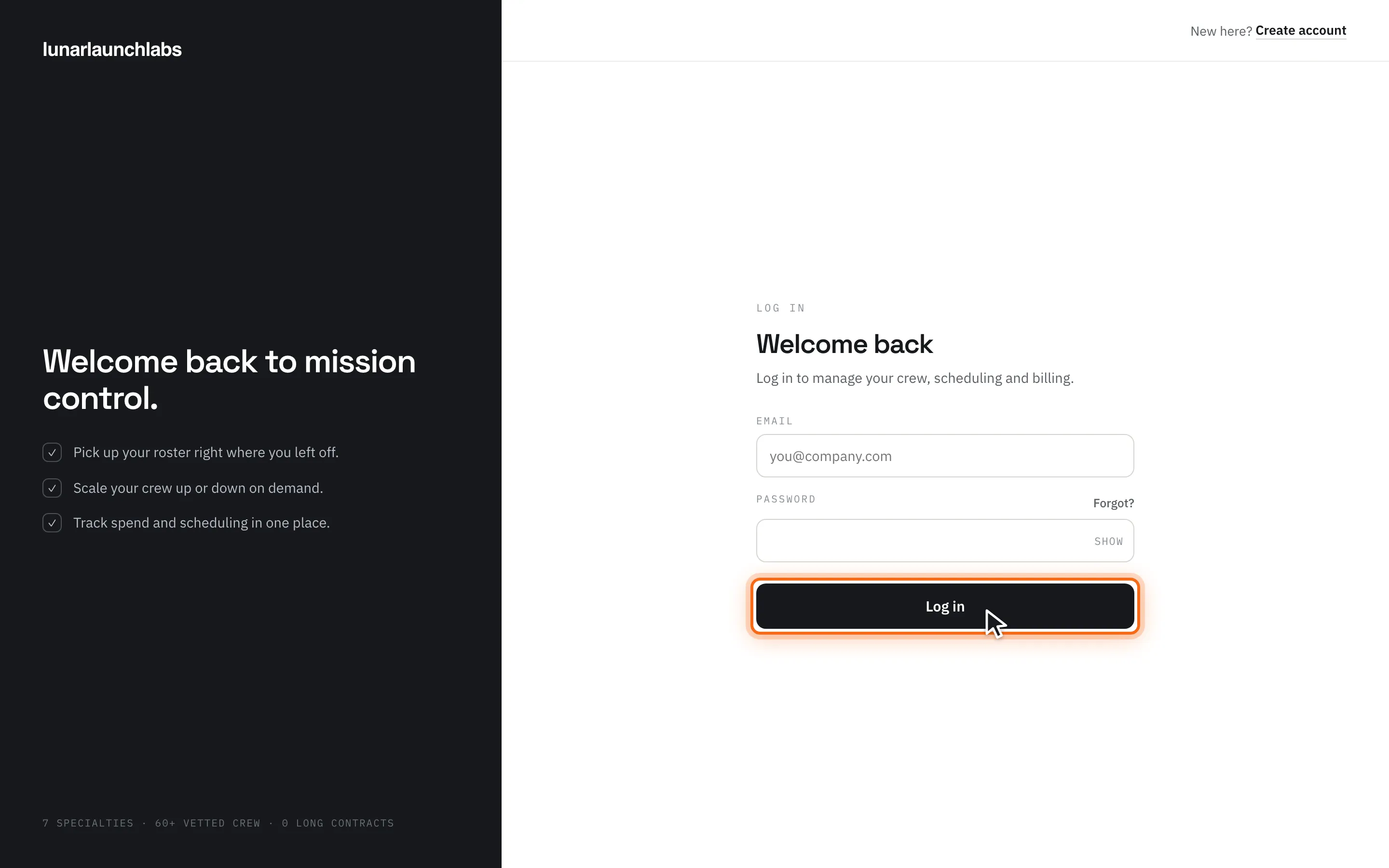
Section titled “Signing in”The sign-in page (“Welcome back”) asks for email and password.
- Wrong credentials: “Invalid email or password” — the same message whether or not the email exists; the platform deliberately doesn’t reveal which.
- Not yet activated: “Please activate your account first” — finish the email-code step.
- Deep links survive sign-in: if you open an app link while signed out, you land on it right after logging in.
Forgot your password?
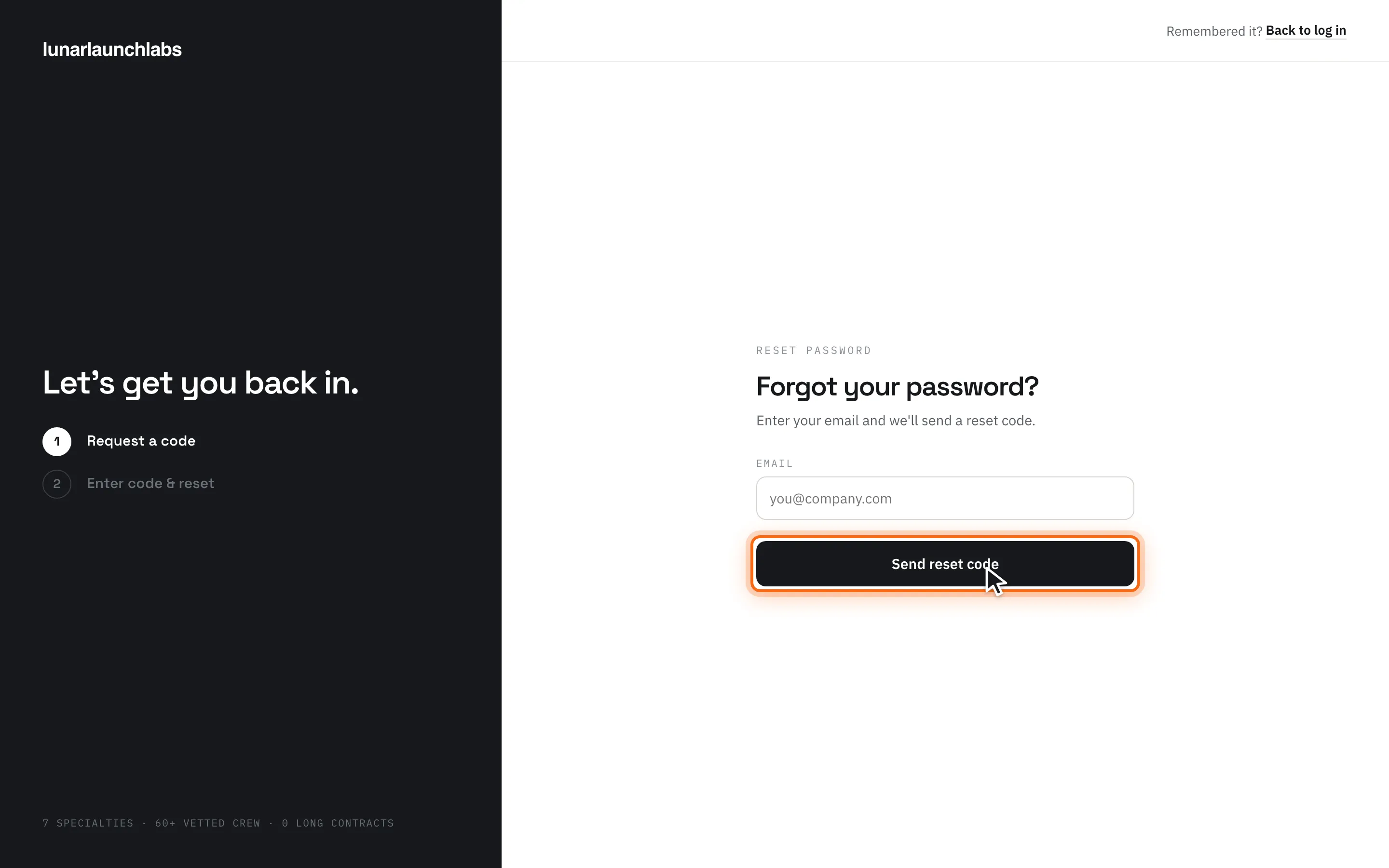
Section titled “Forgot your password?”- Click “Forgot?” on the sign-in page → “Forgot your password?” — enter your email and “Send reset code”. The response is always the same (“If an account exists for that email, we sent a reset code.”) whether or not the email matches an account.
- The email “Reset Your Password” carries a 6-digit code (30-minute expiry) and a link.
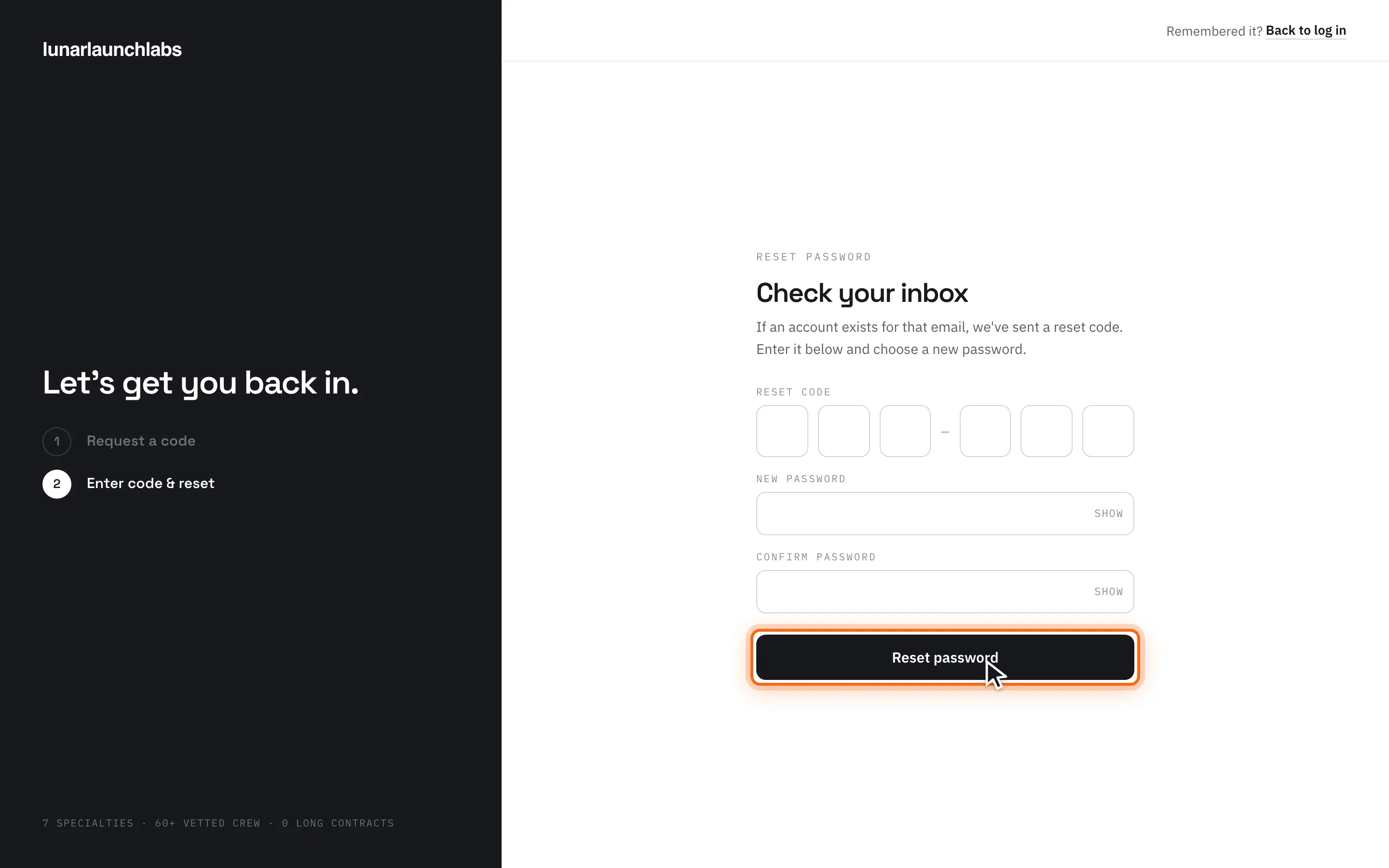
- On “Check your inbox”, enter the Reset code, a New password (min 8) and confirmation, and click “Reset password”. You’ll get the confirmation email “Your Password Was Reset”.
Signed-in clients can also change their password in the app under Settings → Security, which additionally signs out other devices. (Password reset by email code does not sign out existing sessions.)
Sessions, cookies, and signing out
Section titled “Sessions, cookies, and signing out”- Sessions use two strictly-necessary cookies: a 15-minute access token (
l3_at) and a 30-day refresh token (l3_rt), both httpOnly and secure. The app renews itself silently; you stay signed in for up to 30 days of inactivity. - Sign out revokes your refresh token on the server. Changing your password revokes every device’s refresh token.
- The mobile apps keep the refresh token in the operating system’s secure keychain instead of cookies.
- Accounts are personal and role-segmented: per the Terms of Service, don’t share credentials or hold accounts in more than one role to see information your role isn’t shown. Organizations must deactivate (or ask L3 to deactivate) accounts of people who leave.