Settings
Settings (/settings) has four sections, switched by the left rail: Profile and Security (ACCOUNT), General and Admins (WORKSPACE). The header shows an “ALL CHANGES SAVED” badge.
Account → Profile
Section titled “Account → Profile”“Your personal account details.”
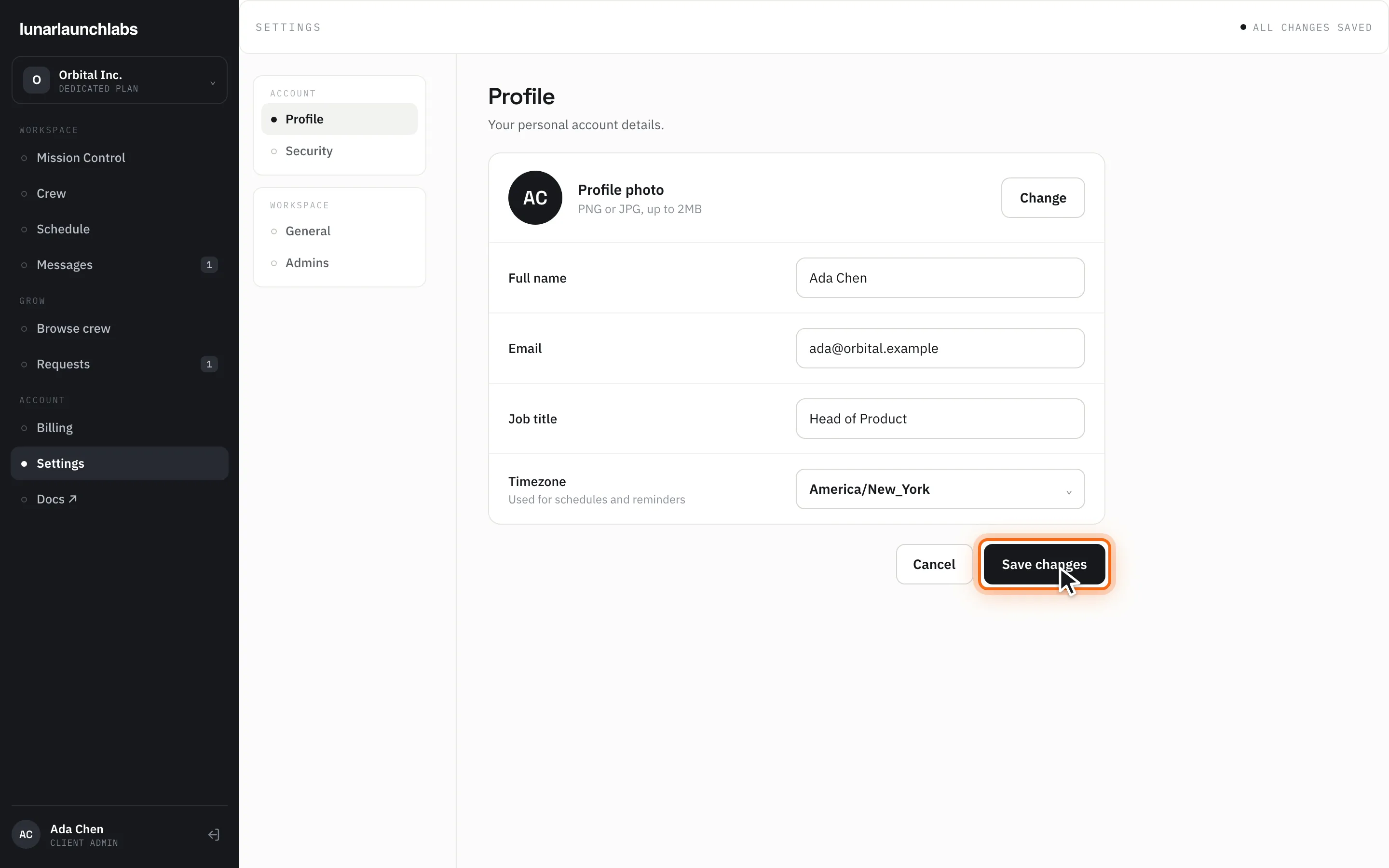
- Profile photo — “Change” opens a file picker (“PNG or JPG, up to 2MB”). Uploads accept PNG, JPEG, GIF, or WebP up to 2 MB; oversized files return “Images must be 2 MB or smaller”.
- Full name — one field, stored as first + last (split at the last space).
- Email — read-only; it’s your login.
- Job title — free text.
- Timezone — a dropdown (“Used for schedules and reminders”) with common zones (US zones, London, Berlin, Tokyo, Sydney, UTC).
“Save changes” commits (your sidebar name updates immediately); “Cancel” reverts. Errors show inline; otherwise “Could not save your profile. Please try again.”
Account → Security
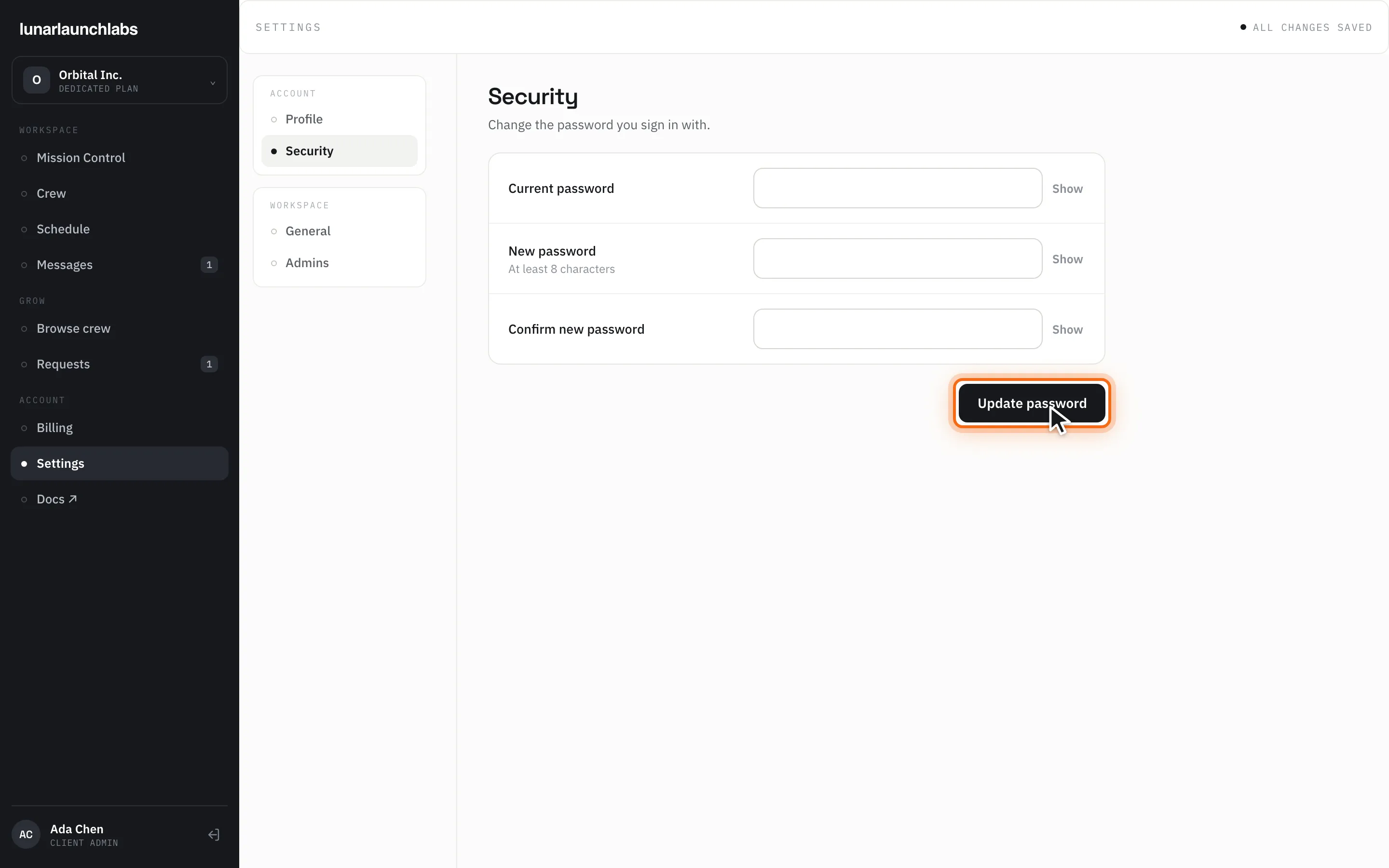
Section titled “Account → Security”“Change the password you sign in with.”
- Enter “Current password”, “New password” (“At least 8 characters”), and “Confirm new password” — each field has a Show/Hide toggle.
- Click “Update password”.
- Mismatched confirmation: “Passwords do not match”.
- Wrong current password: “Current password is incorrect”.
- Success: “Password updated — other devices were signed out” — all refresh tokens are revoked: other devices sign out at their next refresh, and your current session lasts until its access token expires.
Workspace → General
Section titled “Workspace → General”“Your workspace identity and billing contact.”
- Workspace logo — “Change” uploads a logo (same 2 MB image rules).
- Workspace name — your company name as it appears in the app.
- Billing contact — “Invoices and receipts go here” (e.g.
billing@company.com). This address receives past-due notices.
Only the workspace owner can save here — others get “Only the workspace owner can change these settings”.
Workspace → Admins
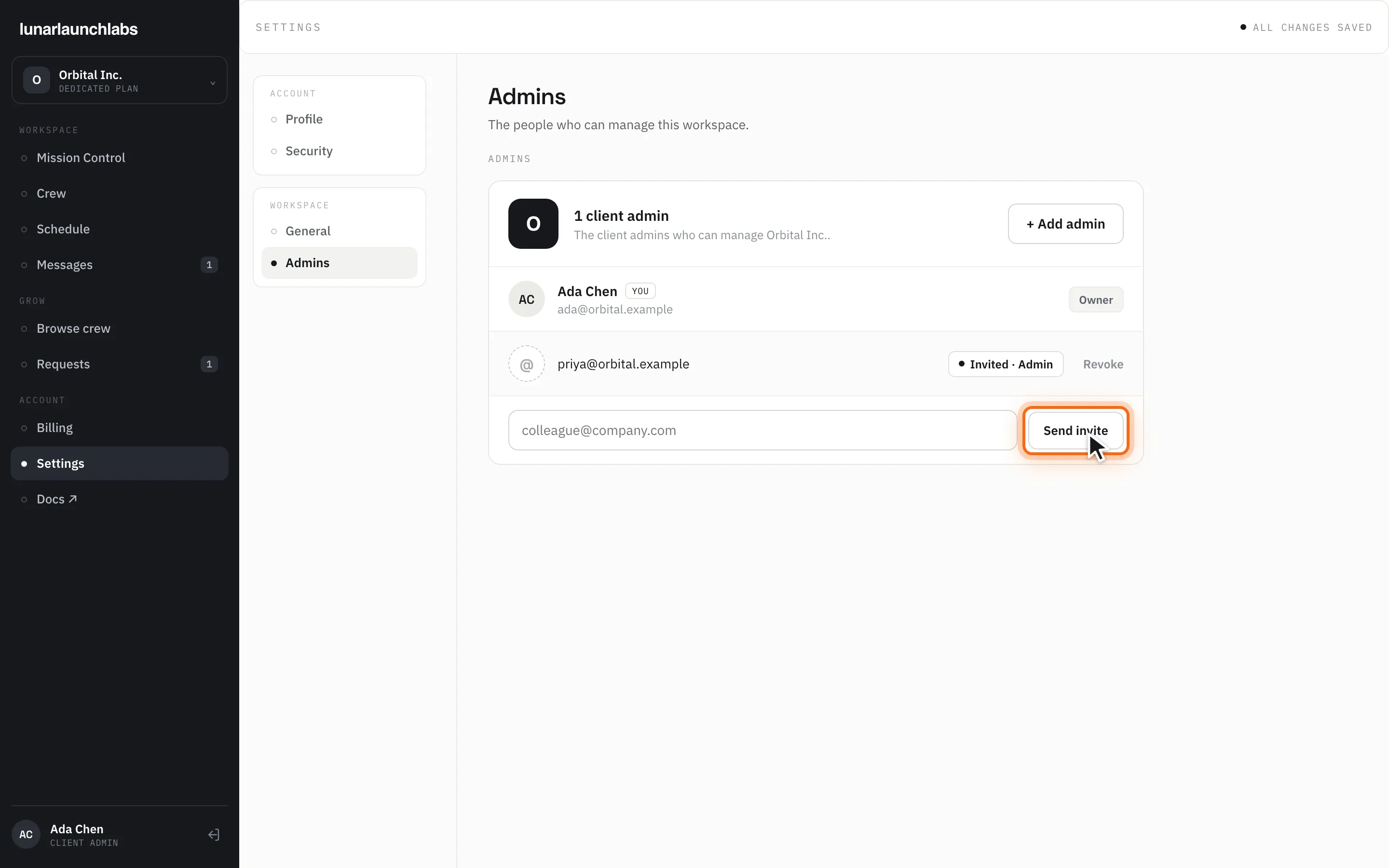
Section titled “Workspace → Admins”“The people who can manage this workspace.” The panel is titled “{N} client admin(s)”.
- Members — each admin’s name, email, and role (Owner / Admin), with a marker on you. The panel’s “+ Add admin” button jumps to the invite field below.
- Pending invites — shown as “Invited · Admin” with a “Revoke” button.
- Invite an admin — enter their email (
colleague@company.com) and click “Send invite”. They receive “You’re invited to Lunar Launch Labs” (purpose: “join the {workspace} workspace as an admin”); the invite expires in 7 days. Accepting creates their client-admin login with full workspace access.
Owner-only rules and errors: “Only the workspace owner can invite admins”, “An invite for this email is already pending”, “An account with this email already exists”, and “That invite no longer exists.”